
Running Agent Discovery
Add a source, run scans, and triage what they find with the Arthur Platform
Agent Discovery finds the AI agents already running across your cloud platforms, employee laptops, and logs, and lists them in one place so you can decide which ones to govern. This page walks through your first run: pick where to look, run a scan, and triage what comes back.
Before you start
You need three things in place.
- An Arthur workspace with Governance access. Agent Discovery lives under Governance > Discovery in the sidebar.
- The Arthur Engine deployed in your environment. Both services are required: the ML Engine runs the scans, and the GenAI Engine keeps the record of every agent found. Nothing runs in Arthur's cloud. See Self-Host the Arthur Engine.
- A read-only credential for each system you want to scan. Discovery only lists and searches. It never changes anything in the systems it reads, and the credential is kept out of logs and error messages.
1. Pick where to look
Open Governance > Discovery. The Discovery targets tab shows the five kinds of systems Arthur can look at, what each one has found, and whether it is set up yet.
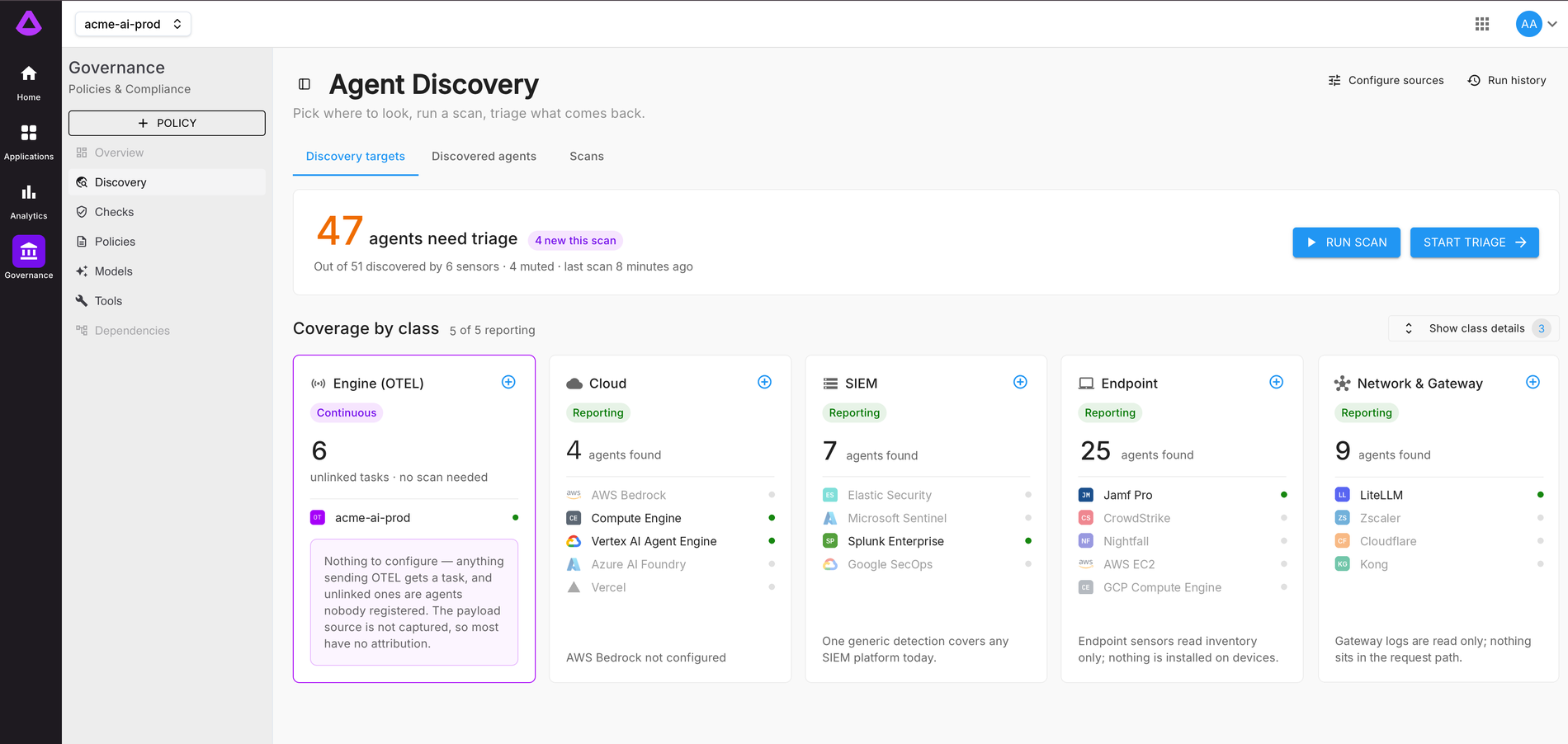
Each card is a class of source:
- Engine (OTEL) is always on. Anything already sending traces to your Arthur Engine shows up here with nothing to configure.
- Cloud, SIEM, Endpoint, and Network & Gateway each need at least one source before they report. The chip on the card tells you where it stands: Not configured until you add a source, Reporting once a scan has run, or No sensor when that class has nothing to read from yet.
To add a source, choose Configure sources or the + on a card, then:
- Pick the source type and enter its connection details and credential. The fields depend on the vendor; the integration page for that vendor lists them.
- Choose Test Connection. Your engine signs in with the credential and shows a preview of what it can see. If the test fails, the message says why.
- Set the schedule and the lookback window. The lookback window is how far back each scan reads, so keep it at least as long as the interval between scans.
- Save. The source appears under its card, and the card reads Reporting after the first successful scan.
2. Run a scan
Scans run on the schedule you set, so nothing more is needed after saving a source. To get results right away, choose Run scan on the Discovery targets tab or Scan now on the Scans tab. A manual scan runs every configured source and finishes when all of them do.
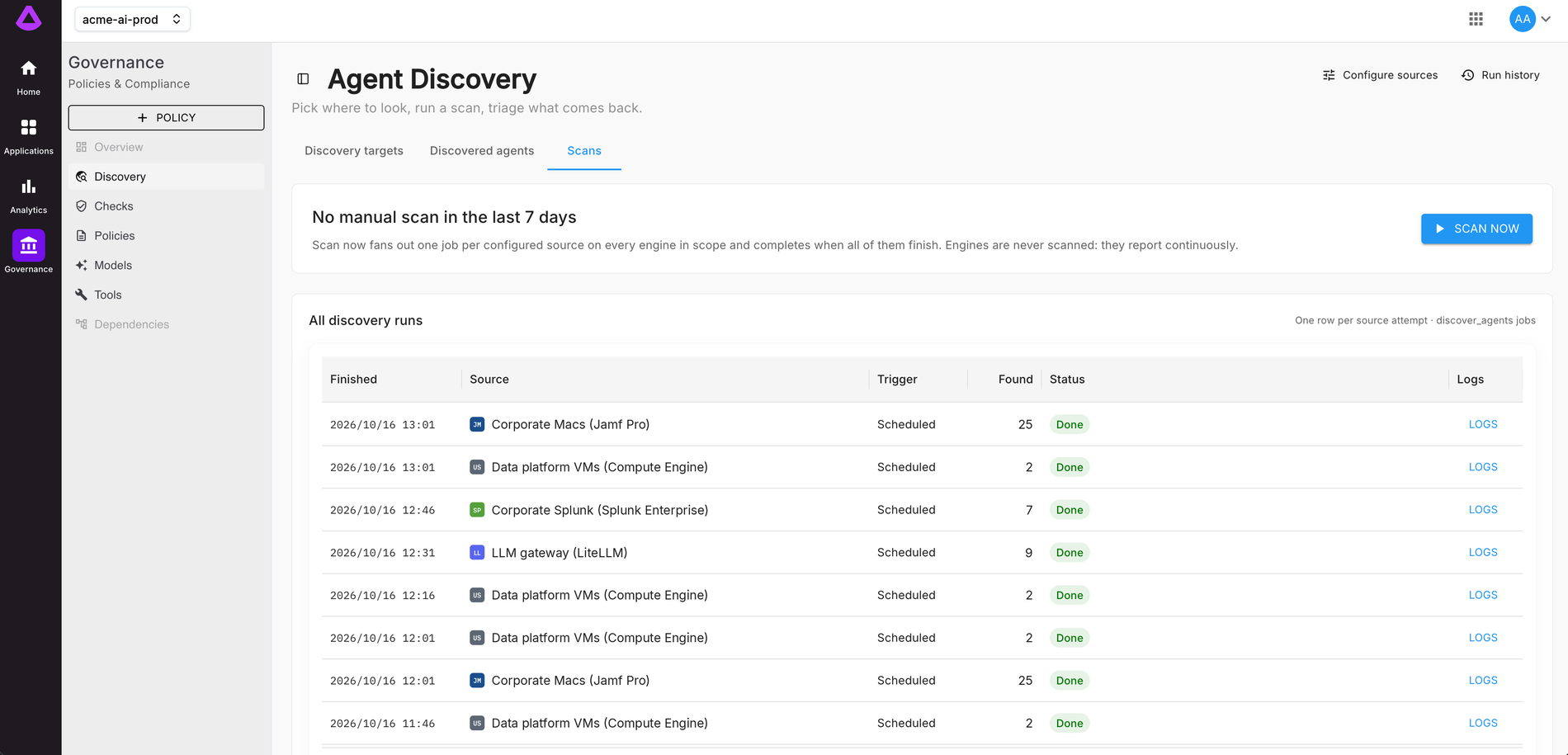
The Scans tab lists every run, one row per source: when it finished, which source it scanned, whether it was scheduled or manual, how many agents it found, and its status. If a run fails, open Logs on that row to see the reason, which is usually a rotated credential or a missing permission.
3. Triage what comes back
Open the Discovered agents tab. Needs triage lists every agent found that no one has registered or muted yet. Muted lists the ones you have set aside.
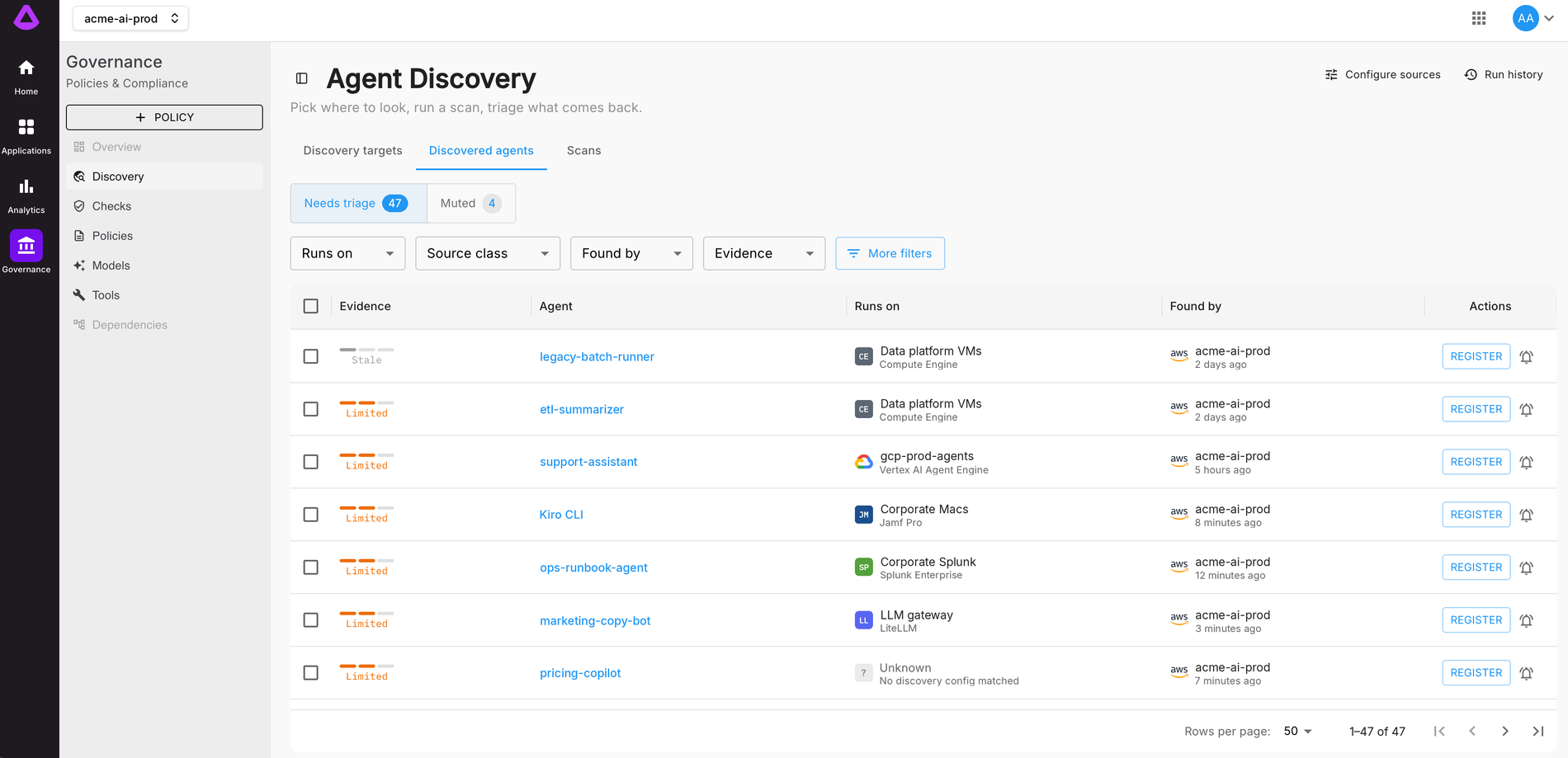
Each row tells you what Arthur knows:
- Evidence is how much the source could see about the agent, and whether the source has stopped reporting it (Stale).
- Agent is the name the source reported. Open it for the full detail: the models it calls, the tools it uses, the machine it runs on, or the log query that matched.
- Runs on is the source that found it and the platform behind it. Unknown means the agent arrived through traces that no configured source matched.
- Found by is the engine that reported it and how long ago.
Use the filters above the table to narrow the list, or choose Start triage on the Discovery targets tab to step through the agents one at a time. For each agent you have two choices:
- Register brings it under Arthur governance. Policies, monitoring, and alerts apply from that point on, and if the owning team adds tracing later, the traces land on the same record.
- Mute sets it aside without governing it. Use this for sandboxes and tools being retired. Muting is not approval: a muted agent is still unmonitored, so review the Muted list on the same cadence as your other governance reviews.
Select several rows to mute them together.
What's next
- Set up policies and alerts for the agents you registered. See Policies & Governance and Alerts & Alert Rules.
- Follow up with the teams that own what you found. Each agent records where it runs and who found it, which is usually enough to find the owner and ask them to add tracing.
- If you are not running the Arthur Platform yet, the ML Engine can scan on its own and send what it finds to your SIEM. See Run Standalone Agent Discovery on Kubernetes.
- For what Discovery can read from and why it matters, see Overview of Agent Discovery.
Updated 7 days ago